How to Make AI Videos: Step-by-Step Guide
Creating AI videos is straightforward once you understand the workflow. Here's exactly how to do it.
What You Need
- A script or concept
- An AI video platform (we'll use Leyline)
- 30-60 minutes for your first video
Step 1: Write Your Script
Keep it simple. AI works best with clear, visual descriptions.
Bad prompt:
"Make something cool with a person"
Good prompt:
"A woman in a red dress walks through a rainy Tokyo street at night, neon signs reflected in puddles"
Script Tips
- Describe what you see, not what you feel
- Include lighting ("golden hour", "neon lights", "overcast")
- Specify camera movement ("slow pan", "tracking shot", "static wide")
- Keep each shot under 10 seconds
Step 2: Generate Your Shots
In Leyline:
- Create a new project
- Paste your script
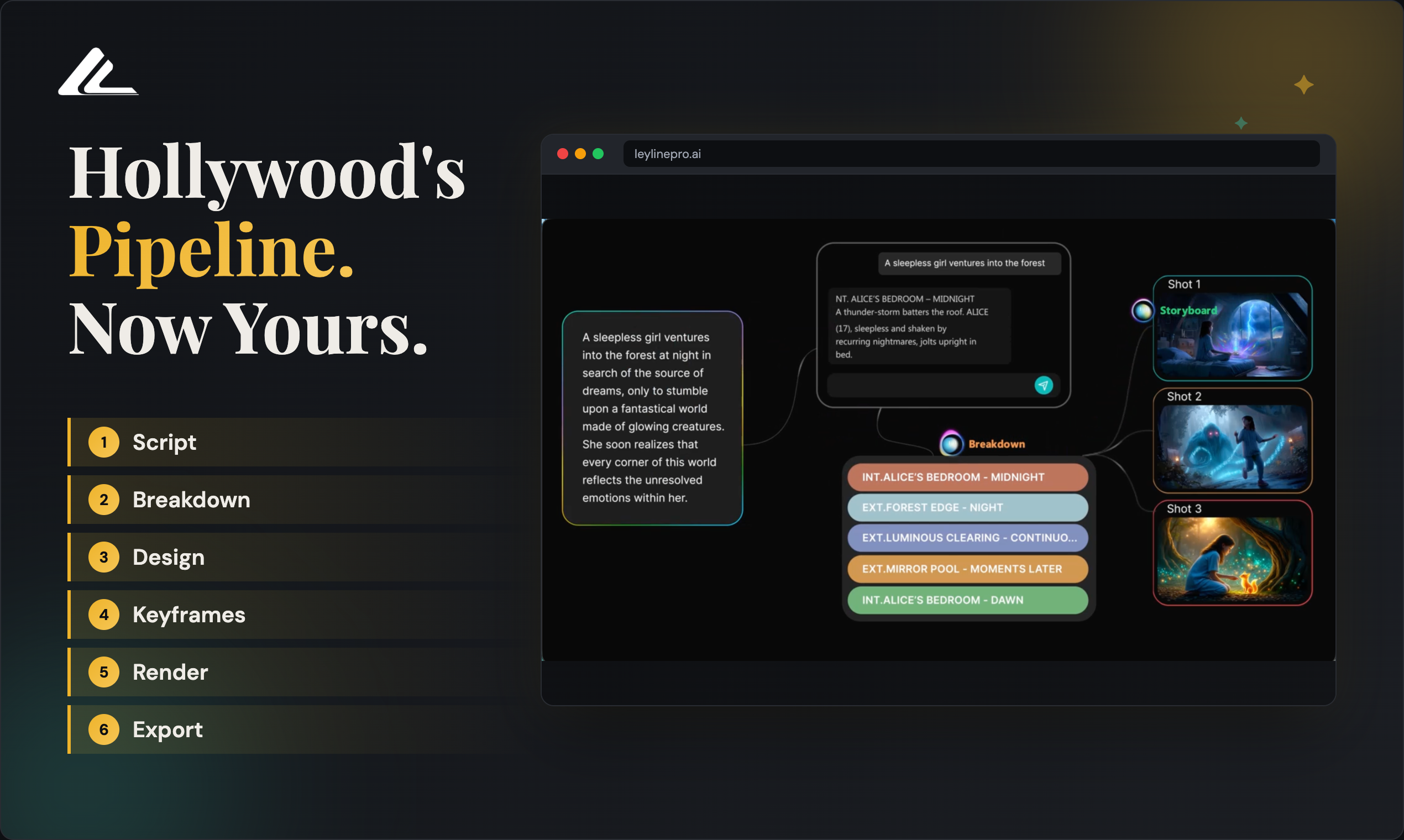
- Use "Breakdown" to split into shots
- Generate keyframes for each shot
- Convert keyframes to video
Generation Settings
| Setting | Recommended | |---------|-------------| | Model | Veo 3 | | Duration | 4-8 seconds | | Aspect Ratio | 16:9 (YouTube) or 9:16 (TikTok) |
Step 3: Review and Regenerate
Not every generation is perfect. For each shot:
- ✅ Keep if motion looks natural
- 🔄 Regenerate if character changes appearance
- 🔄 Regenerate if physics look wrong
Budget 2-3 generations per shot.
Step 4: Assemble Your Video
Once you have all shots:
- Arrange in sequence
- Add transitions (cuts work best)
- Add music/audio
- Export
Common Mistakes
Too Much in One Prompt
❌ "A man walks into a cafe, orders coffee, sits down, opens laptop, starts typing, looks out window"
✅ Break into 5 separate shots
Ignoring Lighting
❌ "Person in room"
✅ "Person in room, soft window light from the left, warm afternoon"
Expecting Perfection
First generations rarely work. Plan to iterate.
Example Project
Goal: 30-second product video
Script:
- Wide shot: Product on table, soft lighting (4s)
- Close-up: Product detail, slow rotate (4s)
- Medium: Hand picks up product (4s)
- Close-up: Product in use (4s)
- Wide: Product back on table, logo appears (4s)
Time to create: ~45 minutes including iterations
FAQ
How long does AI video generation take?
Per shot: 30 seconds to 3 minutes depending on the model and length.
Can I edit AI videos after generation?
Yes. Export and edit in any video editor (Premiere, DaVinci, CapCut).
What resolution can I generate?
Up to 4K with Veo 3. 1080p is standard for most use cases.
Do I need technical skills?
No. If you can write a description, you can make AI videos.
Start Creating
Ready to make your first AI video?
Questions? Email support@leylinepro.ai
Frequently asked questions
What is What You Need?
See the sections above for a detailed answer.
What is Step 1: Write Your Script?
See the sections above for a detailed answer.
What is Script Tips?
See the sections above for a detailed answer.
What is Step 2: Generate Your Shots?
See the sections above for a detailed answer.
What is Generation Settings?
See the sections above for a detailed answer.
How do step 3: review and regenerate fit together?
See the sections above for a detailed answer.
What is Step 4: Assemble Your Video?
See the sections above for a detailed answer.
What is Common Mistakes?
See the sections above for a detailed answer.
Comments
Sign in with your Leyline account to join the conversation.